Galaxy network speed support is finally arriving for Samsung users who have long wanted a live internet speed meter in the status bar.
For years, many Galaxy phone owners asked Samsung to add a simple network speed indicator similar to the one found on several Chinese Android phones. The feature shows real-time download and upload activity directly in the status bar, making it easier to know whether your internet connection is active, slow or stalled.
Until now, Galaxy users had limited options.
They could install a third-party app from the Play Store, but many of those apps required persistent notifications or extra permissions. Advanced users could also enable hidden system flags on rooted devices, but rooting is risky and not practical for most people.
That is now changing with One UI 9.
Samsung has added a network speed indicator through QuickStar, one of the modules inside the Good Lock customization app. It is not a fully native setting inside the main One UI Settings app, but it is still the most official solution Samsung has offered so far.
For Galaxy users, this is a long-awaited quality-of-life update.
Quick Facts About Galaxy Network Speed Indicator
| Feature | Details |
|---|---|
| Feature name | Network Speed indicator |
| Platform | Samsung Galaxy phones |
| Required software | One UI 9 based on Android 17 |
| Required app | Samsung Good Lock |
| Required module | QuickStar |
| Current status | Available through updated QuickStar on One UI 9 beta |
| Display location | Right side of the status bar |
| Shows | Live upload and download speed |
| Works with | Wi-Fi and mobile data |
| Units | K/s and M/s |
| Native One UI setting | Not yet |
| Best install method | Official Good Lock and QuickStar channels |
What the Galaxy Network Speed Indicator Does
The Galaxy network speed indicator shows your live internet speed in the status bar.
Once enabled, it appears near the usual system icons such as Wi-Fi, mobile signal and battery. It displays real-time data activity using units such as K/s for kilobytes per second or M/s for megabytes per second.
The feature works on both Wi-Fi and mobile data.
That means you can quickly see whether your phone is actively downloading, uploading or barely moving any data at all.
This can be useful when checking whether a video is buffering because of a weak connection, whether a download is still running or whether an app is using data in the background.
What It Does Not Show
The network speed indicator does not show signal strength.
That is not really a problem because Galaxy phones already show Wi-Fi strength and mobile network strength using standard status bar icons.
The new indicator focuses only on data speed.
It does not replace the Wi-Fi icon. It does not replace the mobile network icon. It does not show whether your carrier signal is strong or weak. It only shows how much data is currently moving through the connection.
That makes it a practical companion feature rather than a full network diagnostic tool.
Why Galaxy Users Wanted This Feature
Samsung Galaxy users have requested a status bar network speed meter for many years.
The reason is simple: it is useful.
When your internet feels slow, a live speed readout helps you understand what is happening. If the number drops to zero, the app may be stuck, the network may have stalled or the download may have stopped. If the number keeps moving, your connection is still active.
Many Android brands have offered this feature for years.
Phones from brands such as Xiaomi, OnePlus, Oppo, Vivo and Realme have often included network speed indicators in their system settings. That made the feature’s absence on Galaxy phones more noticeable.
Samsung’s solution through Good Lock is not perfect, but it finally gives users an official way to enable it.
Which Galaxy Phones Support It?
At the time of writing, the network speed indicator requires One UI 9, which is based on Android 17.
One UI 9 is still in beta, so availability is limited. Reports currently point to support on the Galaxy S26 series in select beta markets.
Expected supported phones will expand once Samsung releases One UI 9 more widely.
Current and expected support
| Device / Software | Support Status |
| Galaxy S26 series on One UI 9 beta | Supported through QuickStar |
| Older Galaxy S series | Expected later if updated to One UI 9 |
| Galaxy Z Fold and Z Flip models | Expected later if updated to One UI 9 |
| Galaxy A series | Depends on One UI 9 eligibility |
| One UI 8.5 or older | Not confirmed |
| Devices without Good Lock support | Not supported through this method |
Samsung has not confirmed whether the feature will come to older One UI versions.
For now, users should assume One UI 9 is required.
Why It Uses Good Lock Instead of Main Settings
Samsung added the feature through Good Lock’s QuickStar module rather than the main Settings app.
Good Lock is Samsung’s advanced customization suite. It allows Galaxy users to adjust many parts of the interface, including the lock screen, navigation bar, Quick Panel, notification area and status bar.
QuickStar is the Good Lock module focused on Quick Panel and status bar customization.
Because the network speed indicator lives inside QuickStar, it is not a standard One UI feature yet. That means users must install Good Lock and QuickStar before they can turn it on.
This may disappoint users who wanted a simple toggle under Settings, but it still gives Samsung a safer way to test the feature with enthusiasts before deciding whether to make it native later.
How to Enable Galaxy Network Speed Indicator
To enable the network speed indicator, your phone needs One UI 9 and the updated QuickStar module.
Steps to turn it on
| Step | Action |
| 1 | Make sure your Galaxy phone is running One UI 9 |
| 2 | Install Samsung Good Lock from the Galaxy Store or Play Store |
| 3 | Open Good Lock |
| 4 | Go to the Plugins section |
| 5 | Open or install QuickStar |
| 6 | Turn on QuickStar using the main toggle |
| 7 | Tap Visibility of indicator icons |
| 8 | Enable Network Speed |
| 9 | Check the right side of the status bar |
The speed indicator should appear immediately after enabling the option.
If you do not see it, restart the phone or check whether QuickStar is fully updated.
What If QuickStar Is Not Available Yet?
Because One UI 9 is still in beta, the updated QuickStar version may not be available for everyone through the Galaxy Store or Good Lock app.
Some early testers may install newer QuickStar builds manually, but regular users should be careful.
The safest option is to wait for Samsung to release the updated QuickStar module through official Good Lock channels.
Avoid downloading APK files from random websites. Unofficial downloads can expose your phone to malware, modified apps or unstable software.
If you decide to install manually, only use trusted sources and understand the risk. For most users, waiting for the Galaxy Store update is the better choice.
Why This Feature Is Useful
The Galaxy network speed indicator is useful because it gives immediate feedback about your connection.
You do not need to open a speed test app. You do not need to pull down the notification shade. You do not need to guess whether your phone is actually transferring data.
The information is always visible at the top of the screen.
Common use cases
- Checking whether a download is still active
- Seeing whether a video is buffering because of poor speed
- Monitoring mobile data activity
- Spotting background app data usage
- Comparing Wi-Fi and mobile data performance
- Confirming whether a file upload is moving
- Troubleshooting slow browsing
- Checking whether a VPN is slowing the connection
For users who download large files, stream content or frequently switch between Wi-Fi and mobile data, this can be very helpful.
Wi-Fi and Mobile Data Support
The feature works with both Wi-Fi and mobile data.
When you are connected to Wi-Fi, it shows the real-time speed of that Wi-Fi connection. When you switch to 4G or 5G, it shows mobile data speed.
This is important because many users switch between networks during the day.
For example, you may use Wi-Fi at home, mobile data outside and public Wi-Fi at school, work, a café or an airport. The network speed indicator can help you quickly see which connection is performing better.
It can also help you notice when your phone switches from Wi-Fi to mobile data unexpectedly.
Is the Speed Indicator Accurate?
Early reports suggest the indicator is fairly accurate for general use.
However, users should not treat it as a professional speed test tool.
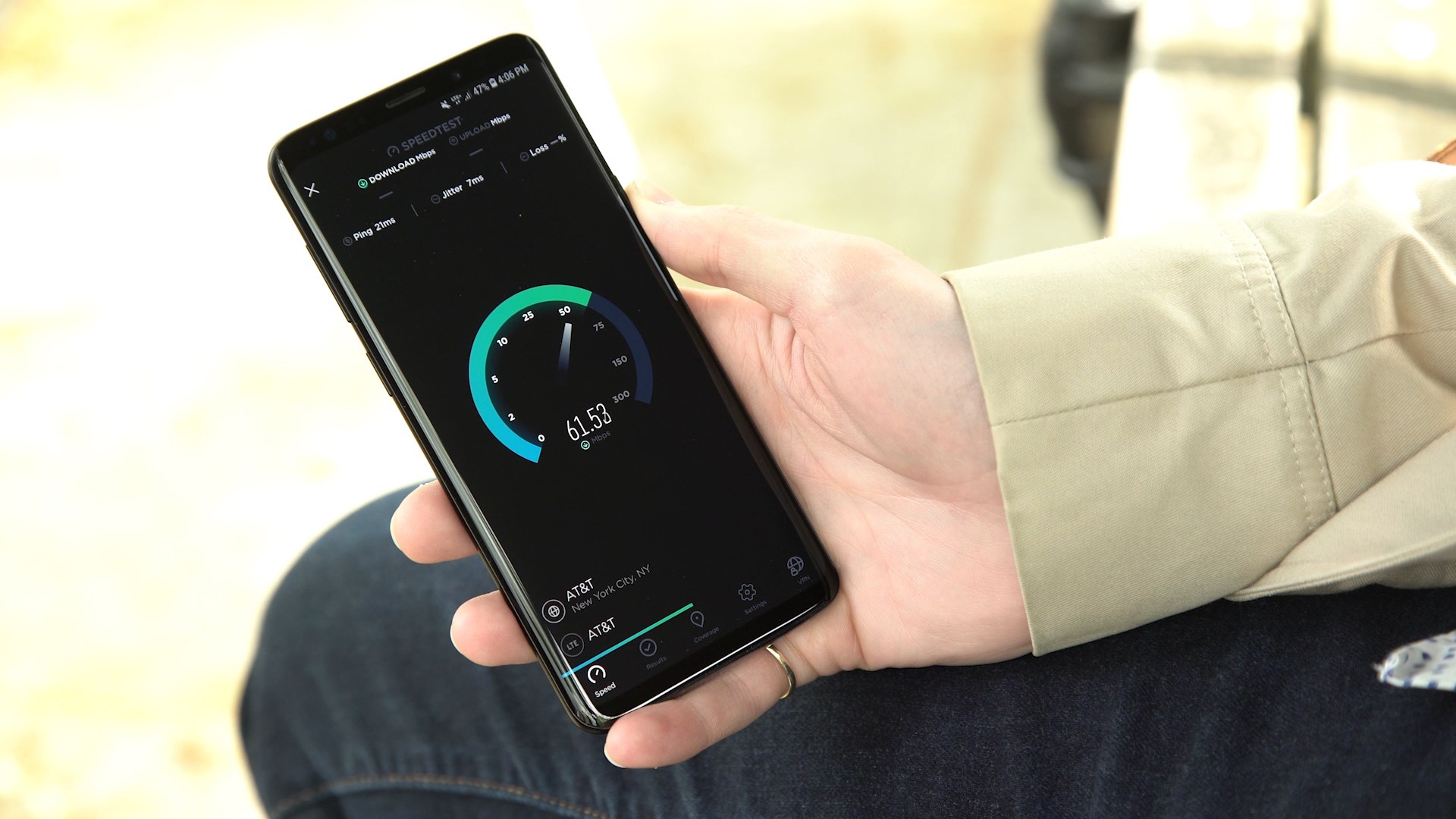
A status bar indicator shows current live data activity, not the maximum speed your network can reach. A speed test app measures network performance under controlled test conditions by sending and receiving data from a server.
The two numbers may not always match.
If your phone is only loading a small webpage, the status bar number may look low. If you are downloading a large file, it may jump higher. That is normal.
The feature is best used as a live activity indicator, not a full benchmark.
How It Compares With Third-Party Apps
Before QuickStar support, many Galaxy users used third-party network speed apps.
These apps still work, but Samsung’s Good Lock approach is cleaner.
Third-party apps often require notification access, background services or always-on notifications. Some may include ads or request unnecessary permissions.
QuickStar is a Samsung tool, so it feels more integrated with the Galaxy interface.
QuickStar vs third-party apps
| Feature | QuickStar Network Speed | Third-Party Apps |
| Official Samsung solution | Yes | No |
| Requires Good Lock | Yes | No |
| Persistent notification | No typical third-party style notification | |
| Risk of ads | No | |
| Works with status bar | Yes | |
| Advanced custom styles | Limited | |
| Availability | One UI 9 only for now | |
| Older One UI support | No confirmed support |
If your phone supports the QuickStar option, it is likely the better choice.
Could Samsung Make It a Native Feature?
Samsung could eventually move the network speed indicator into the main One UI settings, but there is no confirmation yet.
Good Lock often works as a testing ground for advanced customization features. Some features remain exclusive to Good Lock, while others influence future One UI updates.
If user feedback is strong, Samsung may decide to add a simple network speed toggle under Settings in a later version.
A native option would be better because it would reach more users and would not require Good Lock.
For now, QuickStar is the official route.
One UI 9 and Good Lock Customization
One UI 9 is shaping up as a major update for Samsung users.
Beyond system improvements, Samsung is continuing to use Good Lock as a way to deliver deeper customization. QuickStar remains one of the most important Good Lock modules because it controls parts of the interface users see every day.
The addition of a network speed indicator shows Samsung is listening to long-running fan requests.
It may seem like a small feature, but small interface tools often improve everyday use.
For power users, this is exactly the kind of option that makes Android customization valuable.
Should You Join the One UI 9 Beta for This Feature?
Most users should not install beta software only for the network speed indicator.
Beta software can include bugs, battery drain, app compatibility issues and performance problems. If your phone is your main device, it is usually better to wait for the stable One UI 9 release.
The network speed indicator is useful, but it is not worth risking daily stability for most people.
If you are already enrolled in the beta and understand the risks, you can try it through QuickStar.
If not, wait for Samsung’s stable rollout.
Troubleshooting: Why the Option Is Missing
If you cannot find the Network Speed toggle, there may be several reasons.
| Problem | Possible Reason |
| No Network Speed option | QuickStar version is too old |
| QuickStar unavailable | Good Lock not updated for One UI 9 in your region |
| Good Lock missing | Good Lock may not be officially supported in your country |
| Toggle enabled but no speed shown | Restart phone or check status bar icon settings |
| Feature unavailable | Your phone may not be running One UI 9 |
| App install fails | QuickStar build may not support your device yet |
The most common reason is that the required QuickStar version has not reached your device yet.
Safer Install Advice
Because the feature is still new, many users may search for QuickStar APK files online.
Be careful.
Installing APK files from unknown sources can be risky. Modified APKs may contain malware or unstable code. They may also break Good Lock features or cause crashes.
The safer options are:
- Use the Galaxy Store
- Use the Play Store listing where available
- Install QuickStar through Good Lock
- Wait for Samsung’s official module update
- Avoid random file-hosting links
For most users, patience is safer than sideloading.
Key Takeaways
- Galaxy phones are finally getting a network speed indicator.
- The feature arrives through the QuickStar module inside Samsung Good Lock.
- It requires One UI 9 based on Android 17.
- It is currently tied to One UI 9 beta availability.
- The indicator appears on the right side of the status bar.
- It shows live internet speed using K/s or M/s.
- It works with both Wi-Fi and mobile data.
- It does not show signal strength.
- It is not yet a native One UI Settings feature.
- The updated QuickStar module may not be available to all users yet.
- The safest option is to install Good Lock and QuickStar through official Samsung channels.
- Samsung may expand support as One UI 9 reaches more Galaxy devices.
Frequently Asked Questions
Can Galaxy phones show network speed in the status bar?
Yes. Galaxy phones running One UI 9 can show network speed in the status bar through Samsung Good Lock’s QuickStar module.
Is the Galaxy network speed indicator a native One UI feature?
Not fully. It is available through QuickStar inside Good Lock, not directly through the main One UI Settings app.
Which One UI version is required?
The feature currently requires One UI 9 based on Android 17.
Which app do I need to enable it?
You need Samsung Good Lock and the QuickStar module.
Where is the network speed option in QuickStar?
Open Good Lock, launch QuickStar, enable it, go to Visibility of indicator icons and turn on Network Speed.
Does the feature work on Wi-Fi?
Yes. It shows live speed when connected to Wi-Fi.
Does it work on mobile data?
Yes. It also shows live speed when using mobile data.
Does it show signal strength?
No. It only shows data speed. Wi-Fi and mobile signal icons still show signal strength separately.
Why do I not see the Network Speed option?
You may not be running One UI 9, or your QuickStar version may not yet include the feature.
Should I install QuickStar from an APK website?
The safest option is to install Good Lock and QuickStar from official Samsung channels. Avoid random APK sites because they can be risky.
Conclusion
The Galaxy network speed indicator is a small but important upgrade for Samsung users.
After years of requests, Samsung has finally added a way to show live internet speed in the status bar. The feature arrives through Good Lock’s QuickStar module on One UI 9, giving users a cleaner and more official alternative to third-party apps.
It works with Wi-Fi and mobile data, displays live speeds in K/s or M/s and helps users quickly understand whether their connection is active or slow.
The main limitation is availability. One UI 9 is still in beta, and the required QuickStar update may not be visible to everyone yet. It is also not a full native setting inside One UI.
Even so, this is a welcome step.
For Galaxy users who have waited years for a built-in-style network speed meter, QuickStar finally delivers the feature in the most official way Samsung has offered so far.